From Active Directory Lab to PowerShell Admin Toolkit
Getting Active Directory running was only half of this project.
Once the domain, users, file shares, and Group Policies were working, I kept noticing how many checks and administrative tasks I was repeating. Was DNS still resolving correctly? Did every expected OU and security group exist? Which accounts had never logged on? Were the GPOs backed up before I changed anything?
That became the more interesting challenge: turn a working Windows lab into something I could manage and validate with PowerShell.
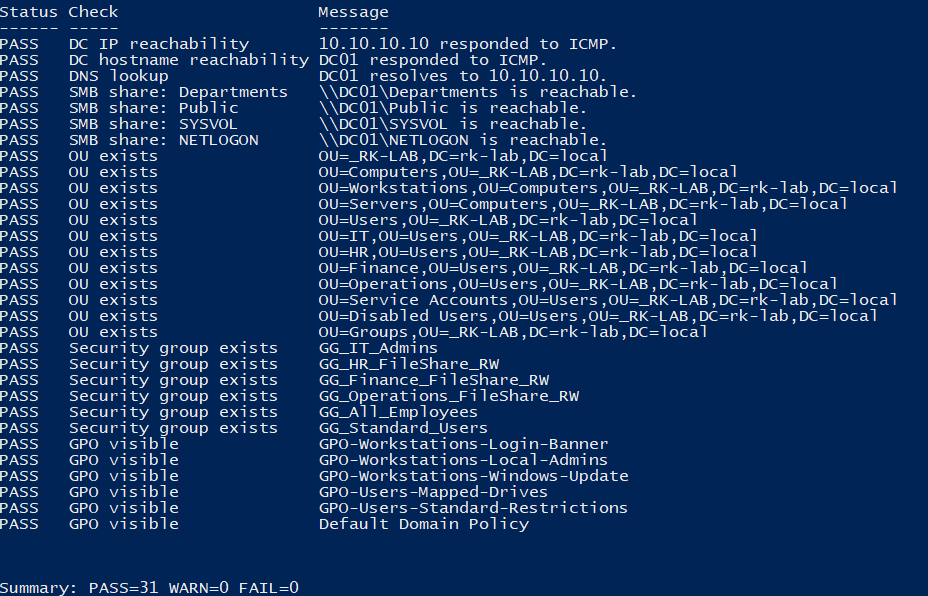
The result is a complete VirtualBox domain lab for rk-lab.local, two domain-joined Windows 11 clients, and a seven-script administration toolkit tested against the live environment. The final health-check run returned 31 passes, 0 warnings, and 0 failures.
The full repository, scripts, phase notes, troubleshooting log, and saved evidence are on GitHub.
The Short Version
For anyone scanning the project, here is what I built:
- A Windows domain with AD DS, DNS, SMB shares, NTFS permissions, and Group Policy
- Two Windows 11 clients joined to the domain
- Department-based OUs, users, and security groups for IT, HR, Finance, and Operations
- Group-based share access and targeted mapped drives
- Seven PowerShell tools for validation, provisioning, reporting, backup, and cleanup
- Live output evidence from the domain, including CSV reports and timestamped GPO backups
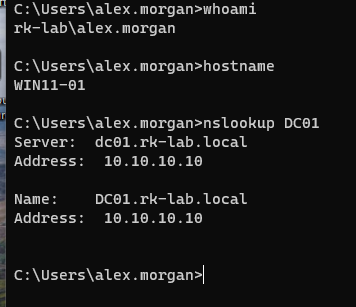 A domain user session on WIN11-01 resolving DC01 through the lab DNS server.
The Automation Became the Main Project
I did not want a folder full of scripts that merely looked plausible. I wanted each tool to answer a real administrative question, fail clearly, and avoid making risky changes by default.
That led me to split the toolkit into three types of work:
| Type | Scripts | Purpose |
|---|---|---|
| Validate | Test-ADLabHealth.ps1 | Check whether the domain still matches its expected state |
| Report and back up | Get-StaleADUsers.ps1, Get-LabGroupMembershipReport.ps1, Backup-LabGPOs.ps1 | Collect evidence before changing anything |
| Change with guardrails | New-LabUser.ps1, Disable-StaleADUsers.ps1, Remove-StaleLocalProfiles.ps1 | Perform repeatable admin work with validation and -WhatIf support |
That report-first approach is the part I would carry into a real environment. Before disabling an account or removing a profile, I want a reviewable result showing exactly what the script found and why it matched.
One Command to Check the Lab
Test-ADLabHealth.ps1 became the quickest way to tell whether the environment was actually healthy.
It checks:
- Domain controller reachability by IP and hostname
- DNS resolution for
DC01 - Availability of
Departments,Public,SYSVOL, andNETLOGON - All expected organizational units
- Department and policy-targeting security groups
- Visibility of the six expected Group Policy Objects
Each check returns PASS, WARN, or FAIL. Missing Microsoft modules produce warnings instead of crashing the whole report, while failed checks produce a nonzero exit code. That makes the output readable for a person and useful in a larger automated workflow.
The final live run completed with:
1
Summary: PASS=31 WARN=0 FAIL=0
The final health check against the live domain.
Seeing all 31 checks pass was more satisfying than getting the initial domain promotion working. It meant the domain controller, DNS, shares, directory structure, groups, and GPOs were all present together, not just configured at some point in the past.
Automating User Provisioning
New-LabUser.ps1 handles both individual users and CSV imports. Given a name and department, it:
- Validates required input and accepted departments
- Generates an available
SamAccountNameand UPN - Checks that the target OU and required groups exist
- Creates the account in the correct department OU
- Requires a password change at first logon
- Adds the user to the configured general and department access groups
- Returns a structured result showing the planned or completed work
I also added duplicate-name handling. The script stops rather than silently creating a second account unless -AllowDuplicateNameSuffix is deliberately supplied.
Most importantly, it supports -WhatIf.
1
2
3
4
5
6
7
.\New-LabUser.ps1 `
  -FirstName John `
  -LastName Doe `
  -Department HR `
  -TemporaryPassword "ChangeMe123!" `
  -WhatIf `
  -Verbose
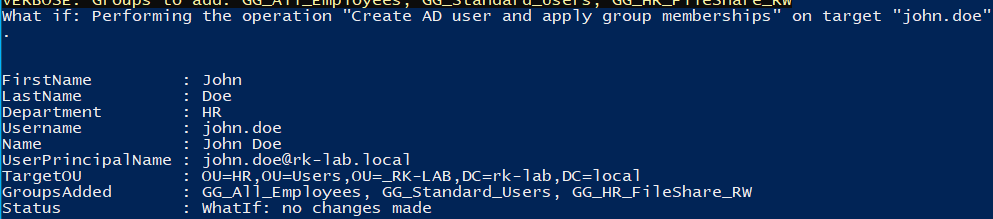 The provisioning preview shows the generated username, target OU, and group memberships without changing the directory.
This is much closer to how I would want an onboarding tool to behave: validate the destination, show its intent, and make the risky step explicit.
Finding Stale Accounts Without Guessing
I built stale-account management as two separate stages.
Get-StaleADUsers.ps1 is read-only. It searches a defined OU, explains why each account needs review, and can export the results to CSV. Never-logged-on accounts are excluded unless requested, and a configurable grace period prevents newly staged accounts from being flagged immediately.
Only after reviewing that report would I move to Disable-StaleADUsers.ps1. It uses the same selection logic, supports -WhatIf, and can optionally move disabled accounts into the Disabled Users OU.
That separation matters. “Find accounts that may be stale” and “disable those accounts” are not the same operation, and combining them into one automatic action would make the script harder to trust.
Reports, Backups, and Endpoint Cleanup
The remaining tools fill out the administrative workflow:
Get-LabGroupMembershipReport.ps1exports group membership so file-share access and GPO filtering can be reviewed outside ADUC.Backup-LabGPOs.ps1creates a timestamped backup of the six expected GPOs using Microsoft’sBackup-GPOcmdlet.Remove-StaleLocalProfiles.ps1targets old domain profiles on Windows endpoints while skipping loaded and special profiles.
The profile cleanup script received extra guardrails because deleting profile data has a much larger consequence than producing a report. It defaults to domain profiles only, excludes built-in accounts, and supports -WhatIf.
It also has a configurable free-space gate. The default threshold is 20 GB, but -MinimumFreeSpaceGB lets the person running it choose an amount that fits the task. For example, I could target workstations with less than 64 GB free during Windows 11 migration work:
1
2
3
4
5
.\Remove-StaleLocalProfiles.ps1 `
  -DaysInactive 180 `
  -MinimumFreeSpaceGB 64 `
  -WhatIf `
  -Verbose
In that example, a PC with 64 GB or more free is skipped. A PC below 64 GB continues to the stale-profile checks. Setting -MinimumFreeSpaceGB 0 disables the free-space gate entirely.
The Windows Environment Behind the Scripts
The automation is useful because it sits on top of a complete environment rather than mocked data.
I built DC01 at 10.10.10.10, configured it for AD DS and DNS, and joined WIN11-01 and WIN11-02 to the domain. I organized users and computers into purpose-specific OUs, then used security groups for access instead of assigning permissions directly to individuals.
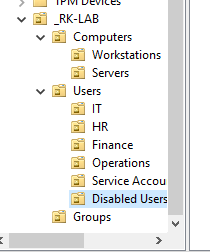 The OU structure used for users, workstations, groups, service accounts, and disabled accounts.
HR, Finance, and Operations users received access to their own department folders, while IT administrators could access all department resources. Group Policy handled login notices, local administrator membership, Windows Update settings, account lockout, standard-user restrictions, and mapped drives with item-level targeting.
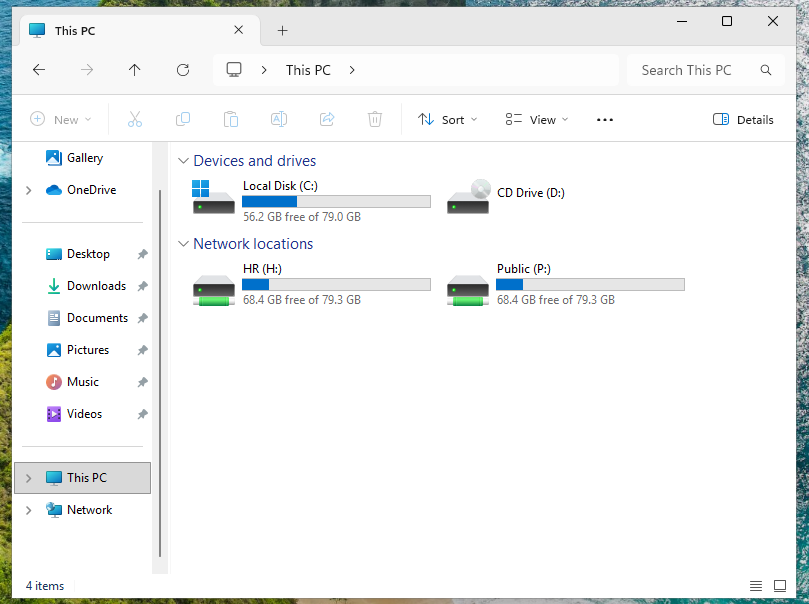 An HR user received the Public drive and HR drive after Group Policy processing.
The Breakages Were Useful Too
This was not a perfectly clean build, and that made it better practice.
I renamed my first domain controller after promotion and broke authentication badly enough that rebuilding was the sensible fix. A client failed to find the domain because its VirtualBox adapter was attached to the wrong network. I configured NTFS permissions on the Public folder and then wondered why it was invisible, before realizing I had never created the SMB share.
Group Policy added two more lessons. Computer settings did not appear in gpresult until I ran it elevated, and a security-filtered user policy stopped applying when I removed the read permission it still needed for policy processing.
I documented those failures in a troubleshooting runbook because a finished screenshot only proves the end state. The diagnosis shows more about how I approach an unfamiliar problem.
What I Took Away
The biggest lesson was not a particular cmdlet. It was learning to think about administration as a sequence:
- Check the current state.
- Produce something reviewable.
- Preview the change.
- Make the change intentionally.
- Verify the result.
The lab gave me practice with Active Directory, DNS, permissions, and Group Policy. The automation forced me to think about repeatability, failure handling, evidence, and how another administrator would decide whether to trust my tools.
That is the part of the project I am proudest of. I did not just get a domain working. I built a small set of tools to operate it, tested them against the live environment, and left enough evidence for someone else to understand what happened.